> For the complete documentation index, see [llms.txt](https://help.citrusad.com/retail-media-interface/llms.txt). Markdown versions of documentation pages are available by appending `.md` to page URLs; this page is available as [Markdown](https://help.citrusad.com/retail-media-interface/retailer-team-and-user-management/managing-users.md).
# Managing users
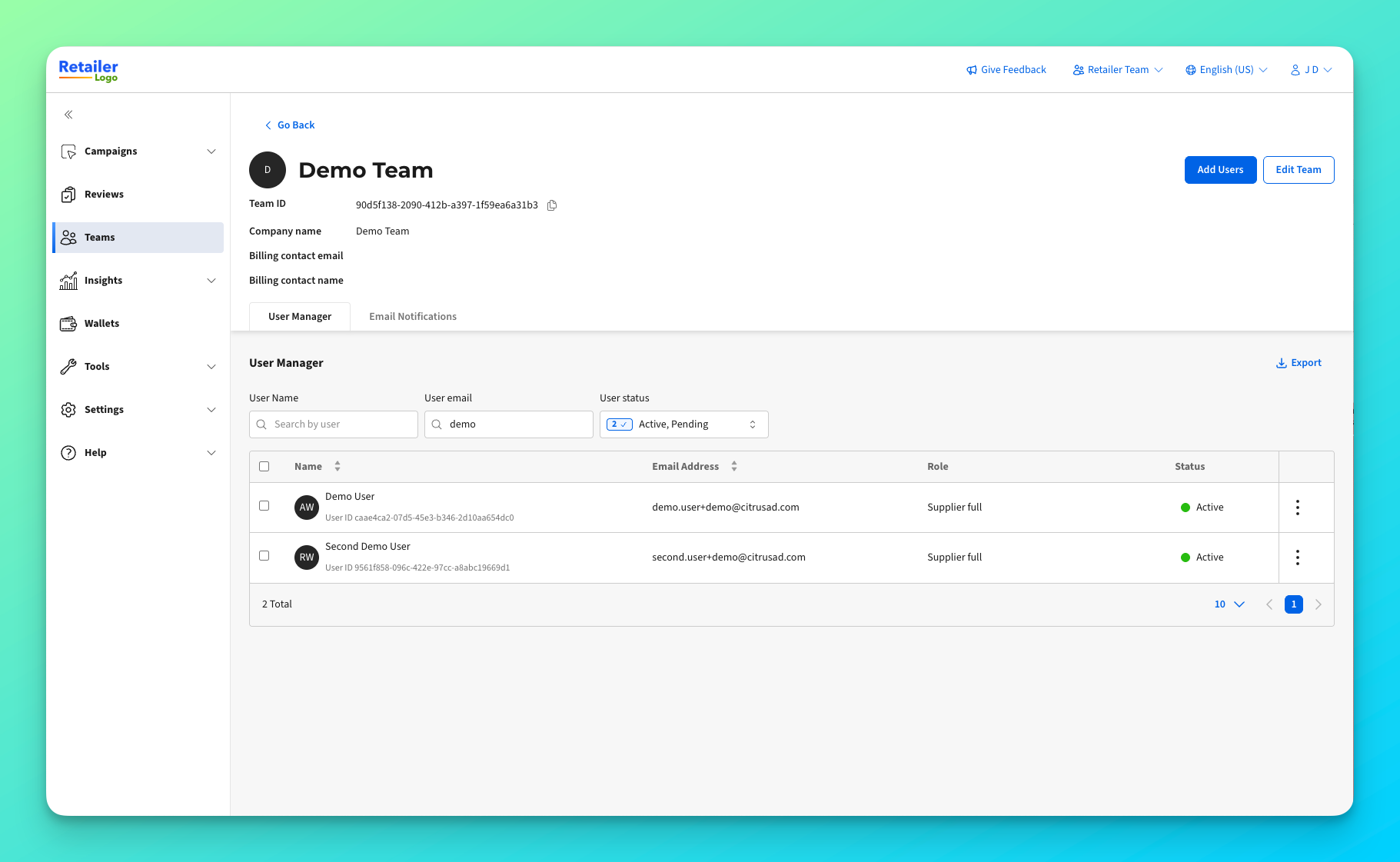
Inside each team, you can manage the users within it, including removing or editing permissions.
If you are looking to add or remove multiple users from multiple teams, we recommend viewing [Bulk adding users to teams](/retail-media-interface/retailer-team-and-user-management/bulk-adding-users-to-teams.md) or [Bulk removing users from teams](/retail-media-interface/retailer-team-and-user-management/bulk-removing-users-from-teams.md).
***
### Managing users
#### Viewing users
The Users table shows all team members with their:
| Column | Description |
| ---------- | --------------------------------------------------------- |
| **Name** | User's display name |
| **Email** | User's email address |
| **Role** | Permission level (Full Access or Report View Only) |
| **Status** | Active (accepted invite) or Pending (awaiting acceptance) |
#### Inviting new users
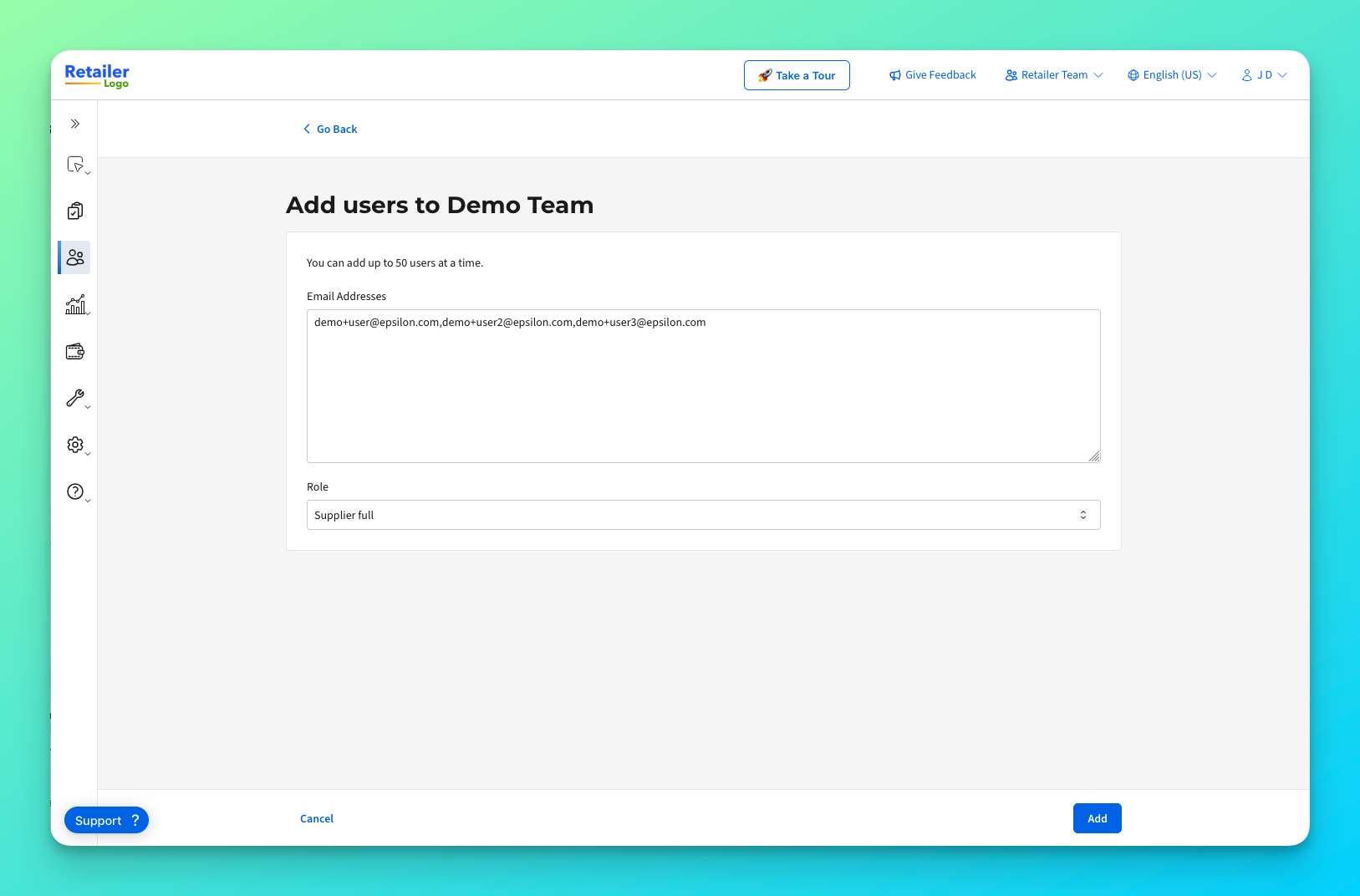
1. Click the **Add User** button
2. Enter the user's email address
3. Select a role:
* **Full Access** — Can create and edit campaigns, manage settings
* **Report View Only** — Can only view reports and analytics
4. Click **Add**
The user will receive an email invitation. New users will be prompted to create an account, while existing users will see the team automatically added to their account.
{% hint style="info" %}
Supplier users who already have an Epsilon Retail Media account will be added to the team automatically. New users must accept their invitation before they can access the team — you can copy the invitation link for pending users if they didn't receive the email.
{% endhint %}
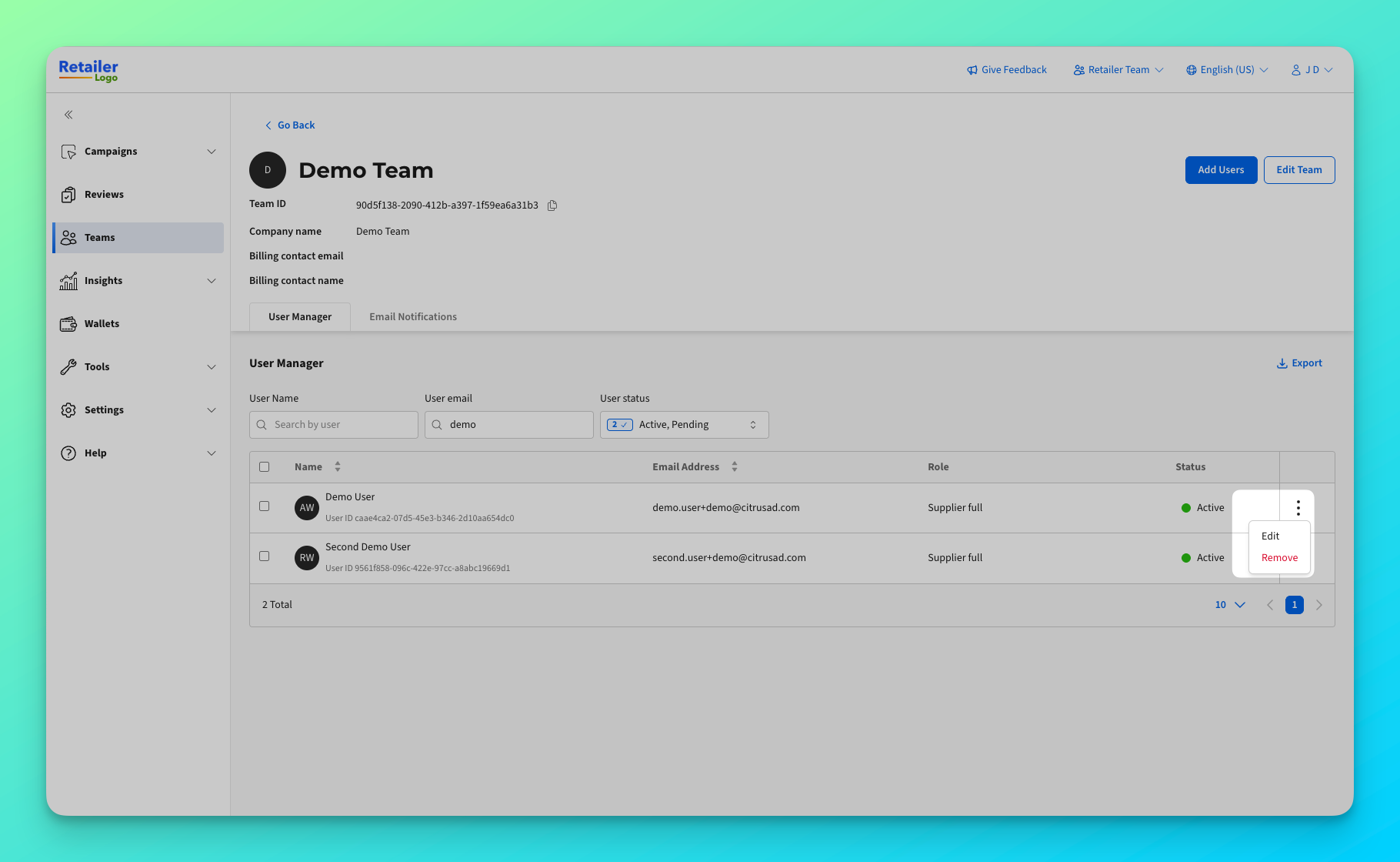
#### Editing user permissions
1. Find the user in the Users table
2. Click the **Actions** menu (three dots)
3. Select **Edit**
4. Choose a new role
5. Click **Update**
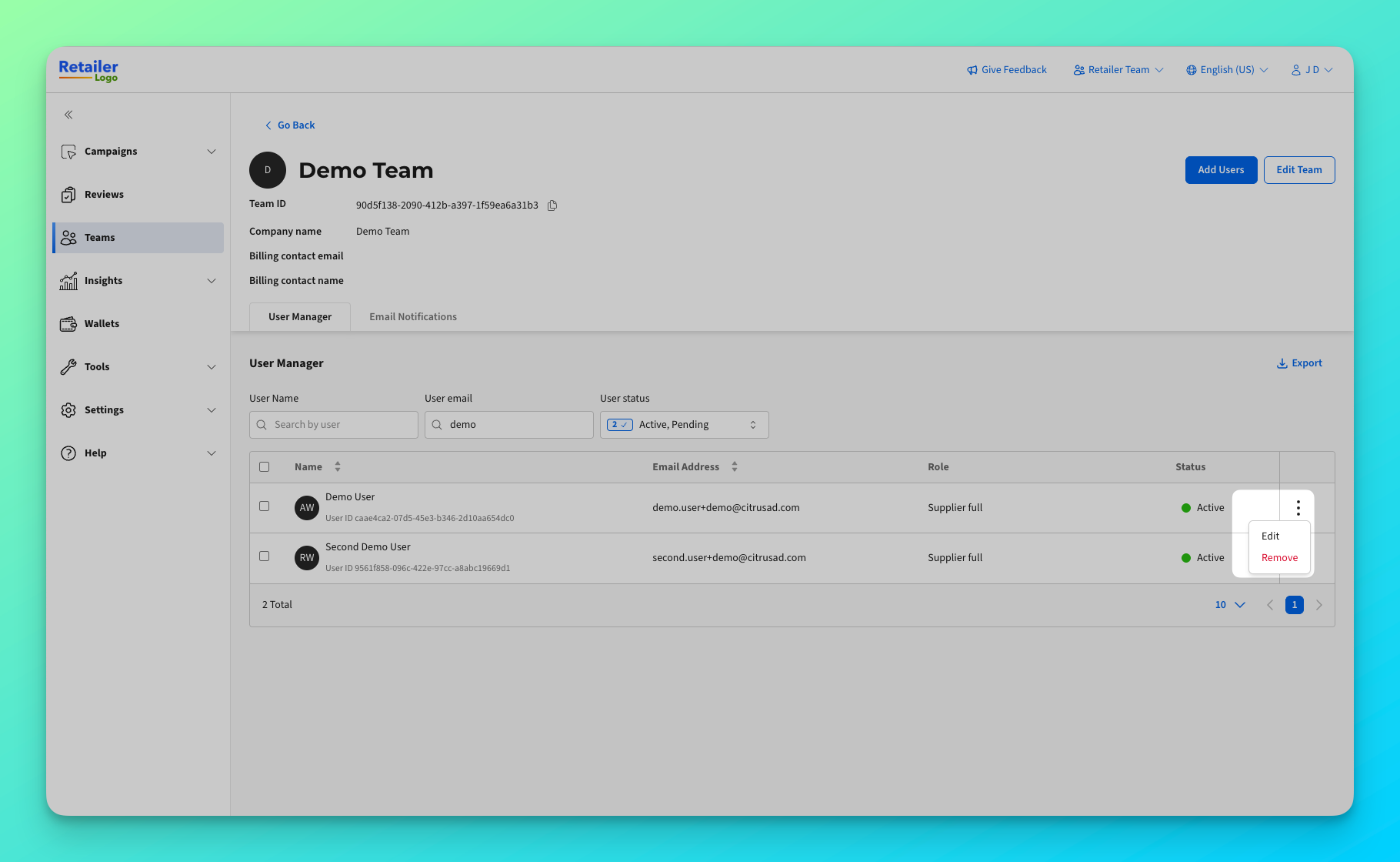
#### Removing users
1. Find the user in the Users table
2. Click the **Actions** menu (three dots)
3. Select **Remove**
4. Confirm the removal
{% hint style="warning" %}
Removing a user revokes their access to the team immediately. They will no longer be able to view or manage campaigns for this team.
{% endhint %}
#### Resending invitations
For pending users who haven't received their invitation:
1. Find the pending user in the Users table
2. Click the **Actions** menu (three dots)
3. Select **Copy Invitation Link**
4. Send the link to the user directly
---
# Agent Instructions
This documentation is published with GitBook. GitBook is the documentation platform designed so that both humans and AI agents can read, navigate, and reason over technical content effectively. Learn more at gitbook.com.
## Querying This Documentation
If you need additional information that is not directly available in this page, you can query the documentation dynamically by asking a question.
Perform an HTTP GET request on the current page URL with the `ask` query parameter, and the optional `goal` query parameter:
```
GET https://help.citrusad.com/retail-media-interface/retailer-team-and-user-management/managing-users.md?ask=&goal=
```
`ask` is the immediate question: it should be specific, self-contained, and written in natural language.
`goal` is optional and describes the broader end goal you are ultimately trying to accomplish on behalf of the user. GitBook uses it to tailor the answer towards what is most useful for that goal.
The response will contain a direct answer to the question and relevant excerpts and sources from the documentation.
Use this mechanism when the answer is not explicitly present in the current page, you need clarification or additional context, or you want to retrieve related documentation sections.