> For the complete documentation index, see [llms.txt](https://help.citrusad.com/retail-media-interface/llms.txt). Markdown versions of documentation pages are available by appending `.md` to page URLs; this page is available as [Markdown](https://help.citrusad.com/retail-media-interface/platform-navigation/platform-notifications.md).
# Platform Notifications
The platform supports two notification channels: in-UI and email. Each has a different purpose:
* **In-UI notifications** appear in the top bar while you're working. They're for acting in the moment — a quick, real-time heads-up that there are campaigns to review, campaigns that were rejected, or wallets running low, with a link straight to where you can act.
* **Email notifications** are sent to your inbox so you stay informed even when you're not logged in. They're for keeping up with what's happening without needing to check the platform.
### Overview
Platform notifications bring campaign and wallet alerts into the new Campaign Management UI, matching the notifications you may have seen in the legacy interface. The same underlying alerts can reach you two ways:
* **In the UI**, grouped in a panel you open from the bell in the top bar.
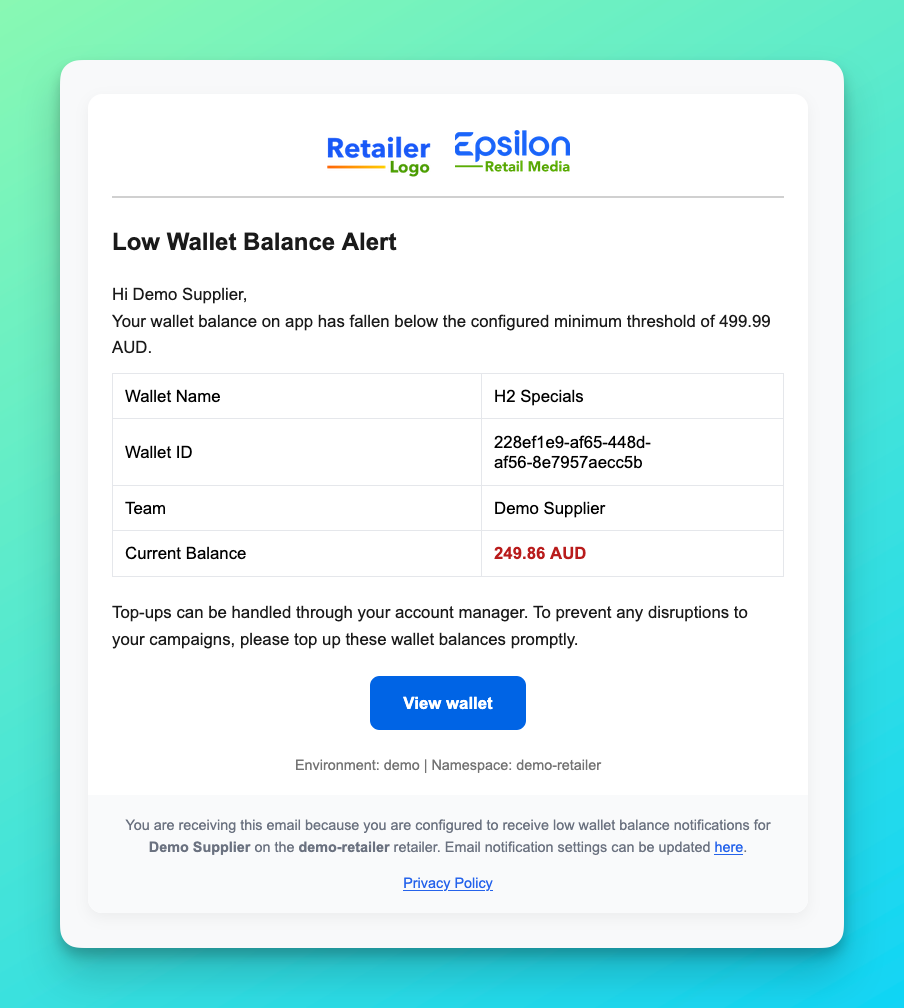
* **By email**, based on the notification types enabled for your team.
### Prerequisites & availability
* **Where available:** In the UI, you'll see the bell in the top bar, as well as the email notification tab when managing teams.
* **Limitations:** In-UI notification types depend on your role (see What you'll be notified about). Email notification options depend on your retailer's configuration.
### In-UI notifications
In-UI notifications are real-time alerts shown in the top bar so you can act without going looking.
#### How to access in-UI notifications
Select the **notification bell** in the top bar. An indicator appears on the bell when you have notifications you haven't seen yet. Select the bell to open the **Notifications** panel.
Notification tab open for a retailer user, showing pending campaigns for review.
#### How in-UI notifications behave
* Notifications show a count (for example, the number of campaigns or wallets affected).
* The bell shows an indicator while you have notifications you haven't opened.
* Each notification either links you to the relevant screen or shows you information.
### Email notifications
Email notifications send alerts to your inbox so your team stays informed when you're not in the platform.
#### How email notifications work
Email notifications are managed at the team level from **Settings → Teams → your team → Email Notifications**. From there, you can enable supported notification types, add recipients, and update each recipient's preferences.
The options available to your team reflect what your retailer has enabled. Email notification types may not exactly match the in-UI notifications shown from the bell.
For setup steps, see [Managing email notifications](/retail-media-interface/advertiser-team-and-user-management/managing-email-notifications.md).
### What you'll be notified about
What appears in your notifications depends on your role and your retailer's configuration. These are the current in-UI notification types. Some may also be available by email.
| Notification | Who sees it | What it means | Where it links |
| -------------------------------- | ----------------------- | ---------------------------------------------- | ------------------------------------ |
| **Campaigns pending approval\*** | Retailers (reviewers) | Campaigns are waiting for review | Reviews |
| **Campaigns rejected** | Suppliers / advertisers | Campaigns were rejected | Your campaigns, filtered to rejected |
| **Wallet out of balance** | Suppliers / advertisers | One or more wallets have run out of balance | Wallets |
| **Wallet running low** | Suppliers / advertisers | One or more wallets are running low on balance | Wallets |
{% hint style="info" %}
\*Campaigns pending approval notifications are set up by Epsilon on the retailer's behalf. Contact support for changes.
{% endhint %}
### Tips for success
* Check the bell when you log in — the indicator tells you if there's something new.
* Open an in-UI notification to go straight to the campaigns or wallets it refers to, rather than navigating manually.
* Turn on email notifications for the alerts your team can't afford to miss when you're away from the platform.
* If you're not receiving an email notification you expect, check your team's **Email Notifications** settings; some options depend on your retailer's configuration.
### Troubleshooting & support
* **I don't see the notification bell:** In-UI notifications may not be enabled for your team yet.
* **A notification count looks wrong:** Open the linked screen to see the current campaigns or wallets; counts reflect your live data.
* **An email notification option disappeared:** Email notification options match your retailer's configuration; ask your retailer administrator if you expect a type that isn't shown.
* Still need help? Contact your account manager or
---
# Agent Instructions
This documentation is published with GitBook. GitBook is the documentation platform designed so that both humans and AI agents can read, navigate, and reason over technical content effectively. Learn more at gitbook.com.
## Querying This Documentation
If you need additional information that is not directly available in this page, you can query the documentation dynamically by asking a question.
Perform an HTTP GET request on the current page URL with the `ask` query parameter, and the optional `goal` query parameter:
```
GET https://help.citrusad.com/retail-media-interface/platform-navigation/platform-notifications.md?ask=&goal=
```
`ask` is the immediate question: it should be specific, self-contained, and written in natural language.
`goal` is optional and describes the broader end goal you are ultimately trying to accomplish on behalf of the user. GitBook uses it to tailor the answer towards what is most useful for that goal.
The response will contain a direct answer to the question and relevant excerpts and sources from the documentation.
Use this mechanism when the answer is not explicitly present in the current page, you need clarification or additional context, or you want to retrieve related documentation sections.