> For the complete documentation index, see [llms.txt](https://help.citrusad.com/retail-media-interface/llms.txt). Markdown versions of documentation pages are available by appending `.md` to page URLs; this page is available as [Markdown](https://help.citrusad.com/retail-media-interface/campaign-management/using-the-bulk-edit-csv-tool.md).

# Using the bulk edit CSV tool

The onsite Bulk Edit CSV Tool makes it easy to update or duplicate multiple ad campaigns at once. You can pause campaigns, change bids, edit dates, update products, keywords and more; all in a few quick steps.

## **How to access the bulk edit tool:**

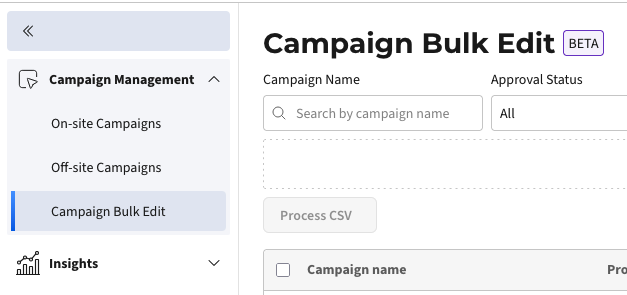
You'll see **Campaign Bulk Edit** in the **Campaign Management** section of the navigation bar, marked with a **New** badge when it first becomes available to you.

<figure><img src="https://19206235-files.gitbook.io/~/files/v0/b/gitbook-x-prod.appspot.com/o/spaces%2FmxYbXHcdDvQ7toxAu8ql%2Fuploads%2Fw36oCt9lHMkmd5BkpxBk%2FCleanShot%202025-10-27%20at%2015.58.33%402x.png?alt=media&amp;token=5fdfe952-79e1-4ded-b3b5-36fefd9ac352" alt=""><figcaption></figcaption></figure>

## **How to use the bulk edit tool**

{% hint style="info" %}
This tool supports onsite **product ad** campaigns only. To manage Banner and Banner X campaigns, use the Campaign Manager UI.
{% endhint %}

### Bulk update: Edit multiple campaigns

Use this workflow to modify multiple existing campaigns at once.

1. **Open the** [**tool**](https://campaign.citrusad.com/bulk-edit/campaigns)
   1. View all product ad campaigns for your team from the Bulk Edit tab: <https://campaign.citrusad.com/bulk-edit/campaigns>.
      1. Please note: product ads are supported, to manage Banner and Banner X campaigns, use the Campaign Manager UI.
2. **Filter campaigns**
   1. Use filters (name, status, approval, placement) to narrow down which campaigns you want to update.
   2. Optionally, use the checkboxes to select specific campaigns.
3. **Export to CSV**
   1. Click the **Bulk Edit** button in the top-right corner.
   2. Select **Update → Export \[N] campaigns to CSV file**.
   3. You'll get a file with all filtered/selected campaigns and their details.
4. **Edit the file**
   1. Open the CSV in Excel or Google Sheets.
   2. Make changes as needed—status, bids, dates, keywords, products, etc.
   3. For every row you change, set the `bulkUpdated` column to `TRUE`. Only these rows will be processed for updates.
5. **Upload the file**
   1. Click **Bulk Edit → Update → Upload bulk update CSV file**.
   2. Select your edited CSV file.
   3. Review the confirmation showing how many rows will be updated.
   4. Click **Process CSV Changes**.
6. **Check for errors**
   1. The tool will confirm success or provide a downloadable file with any failed rows to fix.
   2. Review which campaigns failed and update/correct those rows in the CSV before re-uploading.

### Bulk duplicate: Create new campaigns from existing ones

Use this workflow to create copies of existing campaigns with new settings—perfect for seasonal campaigns or rolling out similar campaigns across different dates.

**What gets copied from the original campaign:**

* All products/SKUs
* All keywords (exact, phrase, and negative)
* Targeting settings (categories, locations, placements)
* Campaign type and bidding strategy

**What you can customize in the CSV:**

* New campaign name (required, must be unique)
* Team and wallet
* Start date and end date
* Always On setting
* Active state (Active, Inactive, Draft, Archived)

1. **Open the** [**tool**](https://campaign.citrusad.com/bulk-edit/campaigns)
   1. View all product ad campaigns for your team from the Bulk Edit tab.
2. **Select campaigns to duplicate**
   1. Use filters or checkboxes to select the campaigns you want to use as templates.
3. **Export the duplicate template**
   1. Click the **Bulk Edit** button in the top-right corner.
   2. Select **Duplicate → Export \[N] campaigns to CSV file**.
   3. A CSV template will download with the selected campaigns.
4. **Edit the file**
   1. Open the CSV in Excel or Google Sheets.
   2. For each campaign you want to create:
      1. Change the `name` to something unique.
      2. Update `startDate` and `endDate` as needed.
      3. Adjust `isAlwaysOn` and `activeState` if required.
   3. Set the `bulkUpdated` column to `TRUE` for each row you want to process.
5. **Upload the file**
   1. Click **Bulk Edit → Duplicate → Upload bulk duplicate CSV file**.
   2. Select your edited CSV file.
   3. Review the confirmation showing how many campaigns will be created.
   4. Click **Process CSV Changes**.
6. **Check results**
   1. Successfully created campaigns will appear in your campaign list.
   2. Any failures will be provided in a downloadable error file for you to fix and retry.

***

## **CSV field reference:**

#### Bulk Update fields

<table data-full-width="true"><thead><tr><th width="187">Field</th><th>Description</th><th>Editable</th><th>Example</th></tr></thead><tbody><tr><td><strong>bulkUpdated</strong></td><td>Used to specify whether you've edited the campaign. Set this to TRUE for campaigns you are editing.</td><td>Yes</td><td>true</td></tr><tr><td><strong>id</strong></td><td>The reference ID of the campaign being updated.</td><td>No</td><td>5300b7d4-6a03-4d14-a2bb-c727e0fb1922</td></tr><tr><td><strong>name</strong></td><td>Campaign name.</td><td>Yes</td><td>Autumn Keyword Optimization</td></tr><tr><td><strong>teamName</strong></td><td>Name of the team. Cannot be edited.</td><td>No</td><td>Demo Team</td></tr><tr><td><strong>walletName</strong></td><td>Name of the wallet. Cannot be edited.</td><td>No</td><td>Default Wallet</td></tr><tr><td><strong>isAlwaysOn</strong></td><td>Specifies whether the campaign is always on. This must be true, or an end date must be set.</td><td>Yes</td><td>true</td></tr><tr><td><strong>startDate</strong></td><td>Specifies when the campaign starts.</td><td>Yes</td><td>2026-11-13, 00:00:00</td></tr><tr><td><strong>endDate</strong></td><td>Specifies when the campaign ends.</td><td>Yes</td><td>2027-01-31, 23:59:59</td></tr><tr><td><strong>products</strong></td><td>Specifies exact catalog:product pairings on the campaign. Values must be entered as catalog:product pairings.</td><td>Yes</td><td>ed2b48ae-2ac1-4a32-9f14-ca54af79ca85;5699144,ed2b48ae-2ac1-4a32-9f14-ca54af79ca85;5699143</td></tr><tr><td><strong>exactSearchTerms</strong></td><td>Specifies exact match keywords on the campaign. Keyword bids can be specified using a semicolon.</td><td>Yes</td><td>Example with bid set:<br>mango ice cream;0.5<br><br>Example list using campaign-level bid: ice blocks,dairy ice cream,ice block,ice creams,ice cream</td></tr><tr><td><strong>phraseSearchTerms</strong></td><td>Specifies phrase match keywords on the campaign.<br>Keyword bids can be specified using a semicolon.</td><td>Yes<br>Leave empty if not offered by your retailer.</td><td>ice cream;1</td></tr><tr><td><strong>exactNegativeSearchTerms</strong></td><td>Specifies exact negative match keywords on the campaign.</td><td>Yes<br>Leave empty if not offered by your retailer.</td><td>chocolate dairy ice cream</td></tr><tr><td><strong>phraseNegativeSearchTerms</strong></td><td>Specifies phrase negative match keywords on the campaign.</td><td>Yes<br>Leave empty if not offered by your retailer.</td><td>chocolate</td></tr><tr><td><strong>maxBid</strong></td><td>Specifies the campaign-level bid to update.</td><td>Yes</td><td>0.5</td></tr><tr><td><strong>activeState</strong></td><td>Specifies the campaign's active state.<br>Must be one of:<br>- Active<br>- Inactive<br>- Archived</td><td>Yes</td><td>Active</td></tr></tbody></table>

#### Bulk Duplicate fields

| Field           | Description                                                                             | Editable | Example                              |
| --------------- | --------------------------------------------------------------------------------------- | -------- | ------------------------------------ |
| **bulkUpdated** | Set to TRUE for rows you're creating.                                                   | Yes      | true                                 |
| **baseId**      | The ID of the campaign to duplicate from.                                               | No       | 5300b7d4-6a03-4d14-a2bb-c727e0fb1922 |
| **name**        | New campaign name. Must be unique.                                                      | Yes      | Spring Campaign Copy                 |
| **teamId**      | Team ID for the new campaign.                                                           | Yes      | team-456                             |
| **walletId**    | Wallet ID for the new campaign.                                                         | Yes      | wallet-789                           |
| **isAlwaysOn**  | Whether the campaign runs indefinitely.                                                 | Yes      | true                                 |
| **startDate**   | Specifies when the campaign starts.                                                     | Yes      | 2026-04-01, 00:00:00                 |
| **endDate**     | Specifies when the campaign ends.                                                       | Yes      | 2026-06-30, 23:59:59                 |
| **activeState** | The campaign's initial active state. Must be one of: Active, Inactive, Draft, Archived. | Yes      | Active                               |

***

## **Tips for success**

* **Date format matters:** Always use `YYYY-MM-DD, HH:MM:SS`. Errors here will prevent your changes from uploading.
* **Only changed rows apply:** Set `bulkUpdated` to `TRUE` for updates; all others must remain `false`.
* **Unique names for duplicates:** Each new campaign must have a unique name, or it will fail.
* **Invalid values/IDs:** Typos in product IDs, incorrect keywords, or invalid bid amounts will cause specific row errors.
* **Save frequently:** Before uploading, review changes and save your CSV file to avoid losing work.
* **Check status updates:** Campaign status can be changed in bulk; double-check before pausing or activating multiple campaigns.
* **Maximum 1,000 rows:** Each upload can process up to 1,000 rows. Split larger files into batches.

***

## **Bulk edit workflow quick reference**

<table><thead><tr><th width="216.546875">Action</th><th width="162.953125">Editable in CSV?</th><th>Format/Notes</th></tr></thead><tbody><tr><td>Pause campaign</td><td>Yes</td><td>Set <code>activeState</code> to <code>Inactive</code></td></tr><tr><td>Change bids</td><td>Yes</td><td>Numeric value in <code>maxBid</code> (e.g. 1.00)</td></tr><tr><td>Edit dates</td><td>Yes</td><td><code>startDate</code> / <code>endDate</code> as above</td></tr><tr><td>Add products</td><td>Yes</td><td>Product IDs comma-separated (e.g. 1234,5678)</td></tr><tr><td>Target keywords</td><td>Yes</td><td>Keywords comma-separated (e.g. chocolate,milk)</td></tr><tr><td>Duplicate a campaign</td><td>Yes</td><td>Use the Bulk Duplicate workflow</td></tr></tbody></table>

## **Troubleshooting & support**

* Common CSV errors include invalid date formatting, empty required fields, or non-numeric bids.
* If you receive an error file, fix the failed rows and re-upload.
* For duplicates, ensure each campaign name is unique.
* For help, contact your Epsilon Retail Media representative or use the Support tab within the platform.


---

# Agent Instructions
This documentation is published with GitBook. GitBook is the documentation platform designed so that both humans and AI agents can read, navigate, and reason over technical content effectively. Learn more at gitbook.com.

## Querying This Documentation
If you need additional information that is not directly available in this page, you can query the documentation dynamically by asking a question.

Perform an HTTP GET request on the current page URL with the `ask` query parameter, and the optional `goal` query parameter:

```
GET https://help.citrusad.com/retail-media-interface/campaign-management/using-the-bulk-edit-csv-tool.md?ask=<question>&goal=<endgoal>
```

`ask` is the immediate question: it should be specific, self-contained, and written in natural language.
`goal` is optional and describes the broader end goal you are ultimately trying to accomplish on behalf of the user. GitBook uses it to tailor the answer towards what is most useful for that goal.

The response will contain a direct answer to the question and relevant excerpts and sources from the documentation.

Use this mechanism when the answer is not explicitly present in the current page, you need clarification or additional context, or you want to retrieve related documentation sections.
