> For the complete documentation index, see [llms.txt](https://help.citrusad.com/retail-media-interface/llms.txt). Markdown versions of documentation pages are available by appending `.md` to page URLs; this page is available as [Markdown](https://help.citrusad.com/retail-media-interface/campaign-management/using-day-parting.md).
# Using day parting
## Day parting
Day parting lets you control when your onsite campaigns can serve. Instead of serving every hour of every day, a campaign serves only during the recurring weekly windows you choose — for example, weekdays from 9am to 5pm.
{% hint style="warning" %}
## Activated per retailer
Day parting is **coming soon**. It rolls out retailer-by-retailer during Q3 2026. If you do not see the **Schedule** section on your campaigns, it is not enabled for your retailer yet. Contact your account manager.
{% endhint %}
### Overview
Day parting lets you add schedules to campaigns. A schedule contains one or more recurring windows. Each window includes a set of days, a start time, and an end time. It repeats every week for the life of the campaign.
Outside your chosen windows, the campaign is not eligible to serve. Inside them, it serves normally against your budget and bids.
Day parting applies to onsite campaigns. It works alongside your flight dates and budget. Flight dates set the overall campaign period. Day parting narrows serving to specific days and times within that period.
{% hint style="info" %}
## **Is this right for you?**
Day parting helps you focus delivery on specific days and times. Use it when shopper activity changes by day or time of day, or when you want tighter control over spend.
If your campaign already performs well, or you do not need tighter time controls, start with [Using autobidding](/retail-media-interface/campaign-management/using-autobidding.md). Autobidding can also pace spend and delivery in line with your daily budget.
{% endhint %}
### Why use this feature?
* **Reach shoppers at the right time** — concentrate delivery on the days and hours your customers are most active.
* **Reduce off-hours spend** — stop serving during periods that do not convert for you.
* **Align with compliance requirements** — If certain types of products you are advertising are limited to selling them only during specific hours in a day
### Key details
* **Recurring windows:** Each schedule entry is a weekly window — a set of days plus a start and end time — that repeats until you change it.
* **Time zone:** Schedule times use your retailer's set time zone. A window set for 9am–5pm serves during those hours in that time zone.
* **No re-approval:** Changing a campaign's schedule does **not** send it back for approval. Your edits take effect once saved.
* **Flight dates still apply:** Day parting narrows serving within your flight dates. It does not extend them.
### Prerequisites & availability
* **Where available:** Onsite auction campaigns in supplier teams in Campaign Management. Set a schedule from the campaign quick-edit drawer. To apply the same schedule to multiple campaigns, use **Set schedule** in bulk actions.
* **Not supported at launch:** The CSV bulk edit tool and fixed tenancy campaigns.
* **Limitations:** Schedules are **recurring weekly rules** only. One-off date-specific windows are not available. Minimum window granularity is one hour.
### How to use day parting
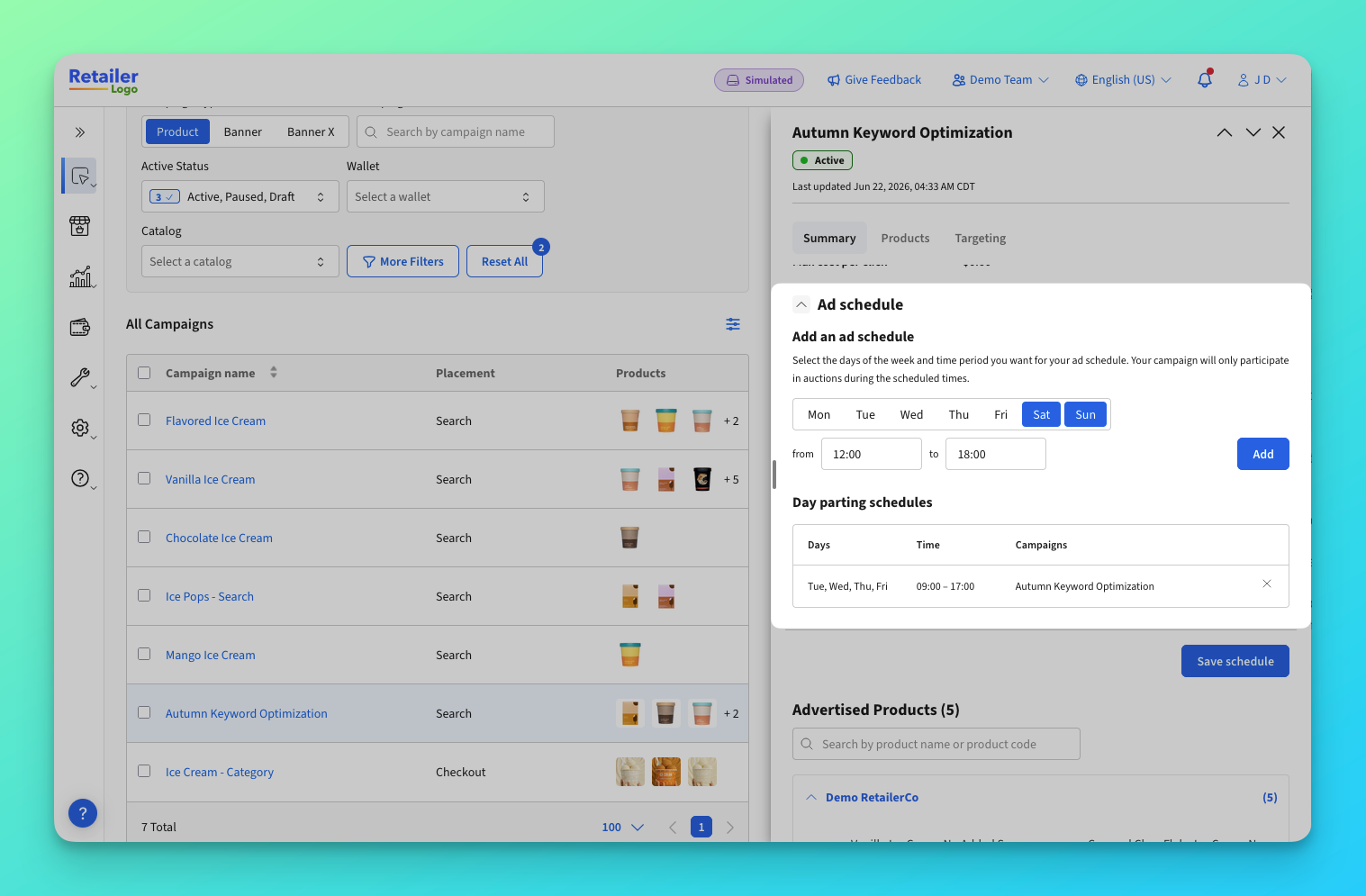
Set a schedule from the quick-edit drawer for one campaign. Use bulk actions when you want to apply one schedule to multiple campaigns.
**Set a schedule on one campaign**
1. Open the campaign — In the campaign manager, open the campaign's quick-edit drawer.
2. Select quick edit.
3. Go to Schedule — Find the Schedule section in the drawer.
4. Add a window — Choose the days and the start and end time, then add it. Repeat to add more windows.
5. Save — Select Save. A confirmation appears when the schedule is stored.
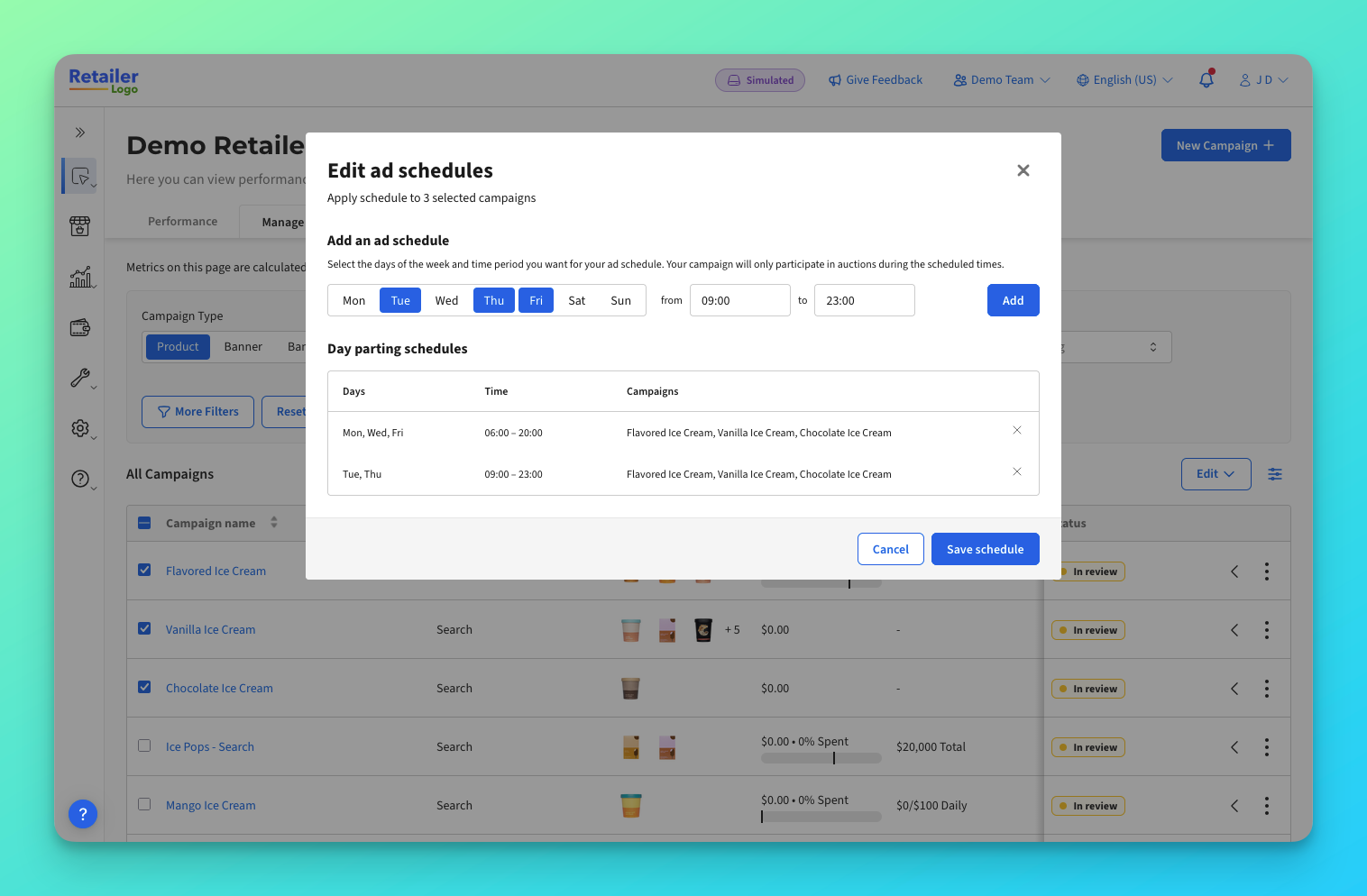
**Set a schedule on many campaigns**
1. Select campaigns — In the campaign manager, select the campaigns you want to schedule.
2. Open Set schedule — Choose Set schedule from the bulk actions.
3. Build the schedule — Add the recurring windows to apply.
4. Apply — Select Save to apply the schedule to all selected campaigns.
{% hint style="info" %}
Do not see the **Ad** **Schedule** section or **Day Parting** bulk action? Day parting may not be enabled for your retailer yet, or it may not be available for your current team. Contact your account manager.
{% endhint %}
### Day parting schedule examples
| Window | Days | Times | Your campaign will serve |
| ---------------- | -------- | ----------- | -------------------------------------------------------------- |
| Weekday daytime | Mon–Fri | 09:00–17:00 | Only Mon–Fri between 9am and 5pm, in your retailer's time zone |
| Weekend mornings | Sat, Sun | 08:00–12:00 | Only Sat and Sun between 8am and 12pm |
| No schedule | — | — | Serves across the full flight, all hours |
Adding more windows widens when the campaign can serve. Removing all windows returns the campaign to serving across its full flight.
#### Tips for success
* Start your campaigns with auto bidding before restricting traffic with Day Parting
* Start with one or two windows that match known peak periods, then refine.
* Select multiple campaigns then select edit to make changes to Day Parting across multiple campaigns.
* Remember that windows repeat weekly. You do not need to reset them each week.
### Troubleshooting & support
* **I do not see the Ad Schedule section:** Day parting may not be enabled for your retailer. Contact your account manager.
* **My schedule did not save:** Re-open the drawer and try again. If the issue persists, contact with the campaign name and time.
* **My campaign is not serving when I expect:** Check the window days and times. Confirm your retailer time zone. Also confirm the campaign is within its flight dates and budget.
* **Still need help:** Contact your account manager or .
### FAQs
**Can I set a one-off window for a specific date?**
No. Schedules are recurring weekly rules. For a one-off period, use the campaign's flight dates.
**Do schedule changes need approval?**
No. Editing a schedule does not re-trigger campaign approval, assuming your retailer uses standard approval rules.
**What time zone does day parting use?**
Day parting uses your retailer's set time zone.
---
# Agent Instructions
This documentation is published with GitBook. GitBook is the documentation platform designed so that both humans and AI agents can read, navigate, and reason over technical content effectively. Learn more at gitbook.com.
## Querying This Documentation
If you need additional information that is not directly available in this page, you can query the documentation dynamically by asking a question.
Perform an HTTP GET request on the current page URL with the `ask` query parameter, and the optional `goal` query parameter:
```
GET https://help.citrusad.com/retail-media-interface/campaign-management/using-day-parting.md?ask=&goal=
```
`ask` is the immediate question: it should be specific, self-contained, and written in natural language.
`goal` is optional and describes the broader end goal you are ultimately trying to accomplish on behalf of the user. GitBook uses it to tailor the answer towards what is most useful for that goal.
The response will contain a direct answer to the question and relevant excerpts and sources from the documentation.
Use this mechanism when the answer is not explicitly present in the current page, you need clarification or additional context, or you want to retrieve related documentation sections.